
Visualizing time-series data is a persistent struggle for finance teams. When actuals, budgets, and forecasts are combined in a single chart, the visuals can quickly become unclear.
Analysts often resort to manually highlighting single columns, but this often adds confusion rather than clarity. Time-based chart formatting cleanly differentiates actuals, budgets, and forecasts to maintain executive clarity.
How do you visualize actuals, budget and forecast in PowerPoint?
Actuals, budgets and forecasts represent different types of data, and should not be displayed in the same way. If they have the same styling, it’s harder for your audience to interpret what they’re seeing.
A more effective approach is to visualize it in a way that clearly differentiates each data type, while still maintaining a clean and unified design.
Here is a simple framework for styling time-based charts:
-
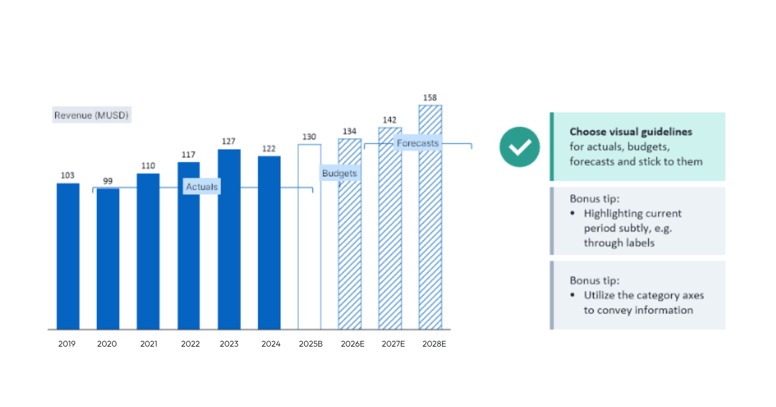
Ground your actuals. Use a solid fill color to anchor historical data.
-
Frame your budgets. Use a solid outline with no fill to define approved targets.
-
Project your forecasts. Use a hatch brush pattern to visualize future expectations.
| Data type | Visual rule | Objective |
| Actuals | Solid fill | Grounds historical data |
| Budgets | Solid outline | Frames approved targets |
| Forecasts | Hatch brush | Projects future expectations |
By applying this consistent design, your audience can immediately recognize what type of data they are looking at.
For additional clarity, you should also add subtle labels such as “B” for budget and “E” or “F” for the forecast directly to the axis.
How can you automate Excel data formatting in presentations?
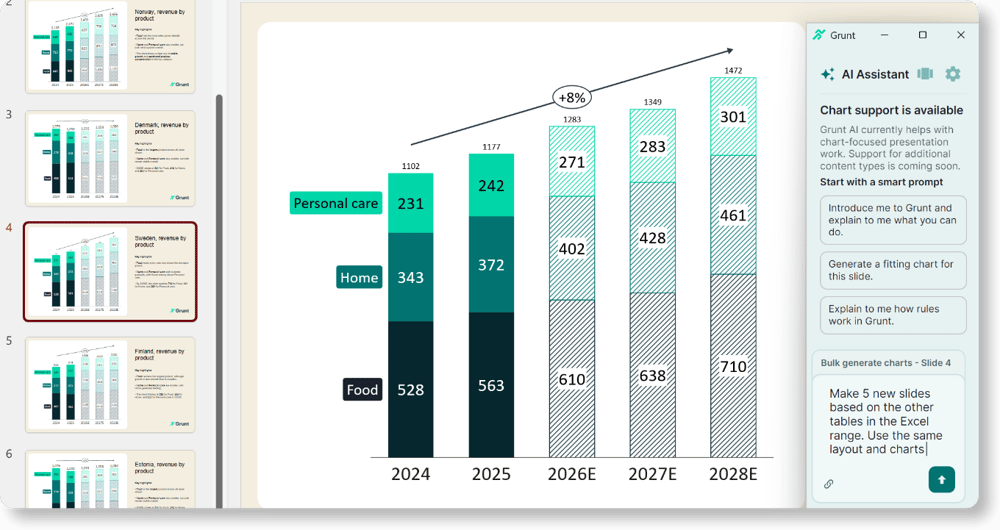
Manually styling individual columns is exactly the manual grind that destroys your efficiency. Grunt automates the design process by allowing users to define the intent of formatting rather than manually styling individual elements.
You can set Formatting Rules to automatically adapt chart visuals based on specific cell data.
The Excel Connection provides an industry-leading, live data link between source Excel files and PowerPoint presentations to guarantee data integrity.
When the Excel source file is connected to the slide, it notifies the user when data changes. You gain guaranteed consistency and perfectly clean charts ready for the executive team. This automation immediately improves workflows and removes formatting bottlenecks.
Present your business insights with memorable charts
The example above illustrates how small design choices, such as using fill, outlines, and patterns, can significantly improve how your data is understood.
Watch our masterclass Memorable Charts: How to present your business insights to learn how to present your data so your audience quickly understands what matters, and remembers it.