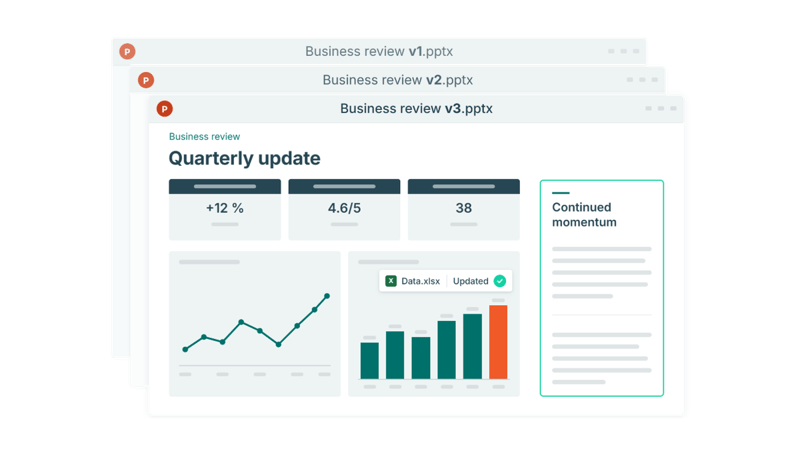
Many business presentations continue to evolve after the first version is finished. Board presentations are updated as new numbers arrive, sales decks evolve from one customer to the next, and strategy presentations change as priorities shift.
Yet many teams still treat recurring presentations as one-off projects. Slides, charts and tables are recreated, numbers are updated manually, and formatting work is repeated every time a new version is needed. A better approach is to build workflows that make existing work easier to update and reuse, instead of starting from scratch.
Why the work adds up after version one
Once a presentation becomes recurring, every new version brings another round of updates. Numbers change for the next monthly report, content is adapted for another customer, or new analysis is added for an upcoming business review.
Creating a new version is often necessary, but repeating work you've already done isn't. When slides, charts and tables have to be recreated or manually updated each time, the same work returns with every new version.
This is especially true for data-driven slides. If charts and tables aren't connected to the underlying data, new numbers have to be carried into PowerPoint manually. What could have been a simple refresh becomes another round of adjusting visuals and checking them against the latest data.
Keep PowerPoint connected to the underlying data
Many recurring presentations include data that changes regularly, such as financial results, sales performance, project metrics or other business KPIs.
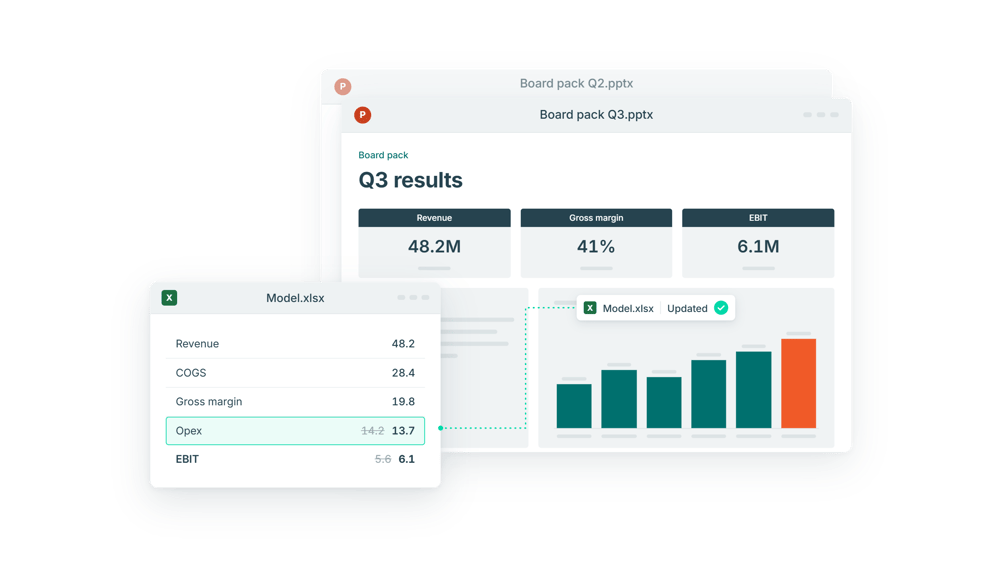
Numbers from Excel are often copied and pasted into PowerPoint or added as screenshots. That works for the first version, but once the numbers change or the presentation is reused, the charts and tables have to be updated manually to match the latest data. Keeping PowerPoint connected to the underlying Excel data removes that rework. When the numbers change in Excel, connected charts and tables can be updated in PowerPoint with one click.
The connection stays in place as the presentation is updated, so recurring visuals can be refreshed rather than rebuilt for every new version.
Build the next update into the workflow
If you know a presentation will be used again, the next version shouldn’t require the same work as the first.
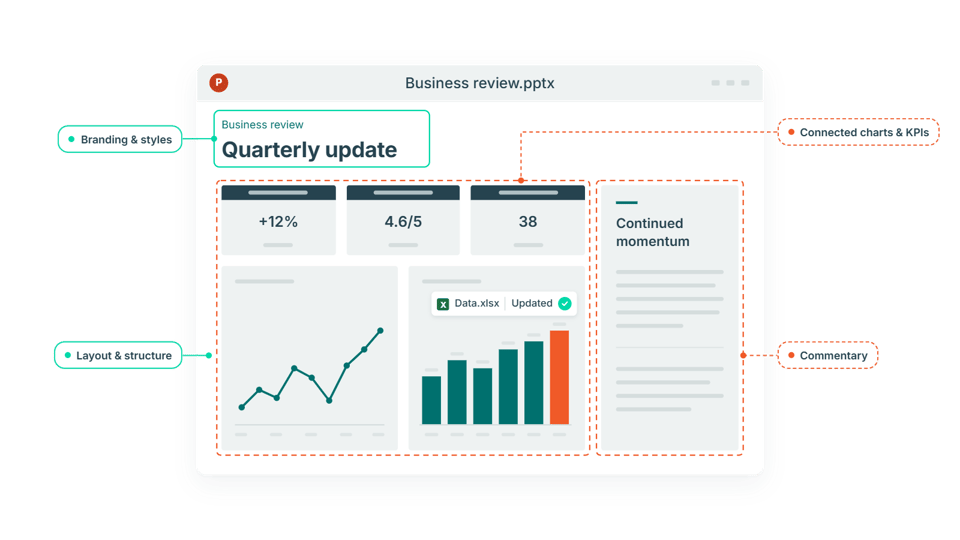
Start by preserving what can be reused. A monthly performance presentation might keep the same structure, layouts and KPI slides from one period to the next. A sales deck might reuse its core company and product story while adapting the customer-specific content. Building each new version from one clean, up-to-date master, rather than whichever file was used last, keeps outdated slides and one-off changes from carrying over.
That leaves your time for the parts that genuinely need it: reviewing the results, adding commentary, refining the story and adapting the presentation to its audience.
Make every update easier
A new version doesn't have to mean starting over. Reuse what stays the same, keep data-driven charts and tables connected to Excel, and spend the time you save on the content, analysis and story.